
Alternative text (alt text) is the short description that screen readers read aloud in place of an image. Without it, people who cannot see the picture miss the information. The Alt texts tab turns the job into a quick routine: one image after the other, the ones without a description first.
Open the tab
Go to Accessilo → Alt texts. The list starts with the images that have no alt text. The buttons above the gallery show how many images are in each group: Without alt text, All images, With alt text and Decorative. Type in the search box to find an image by its file name.
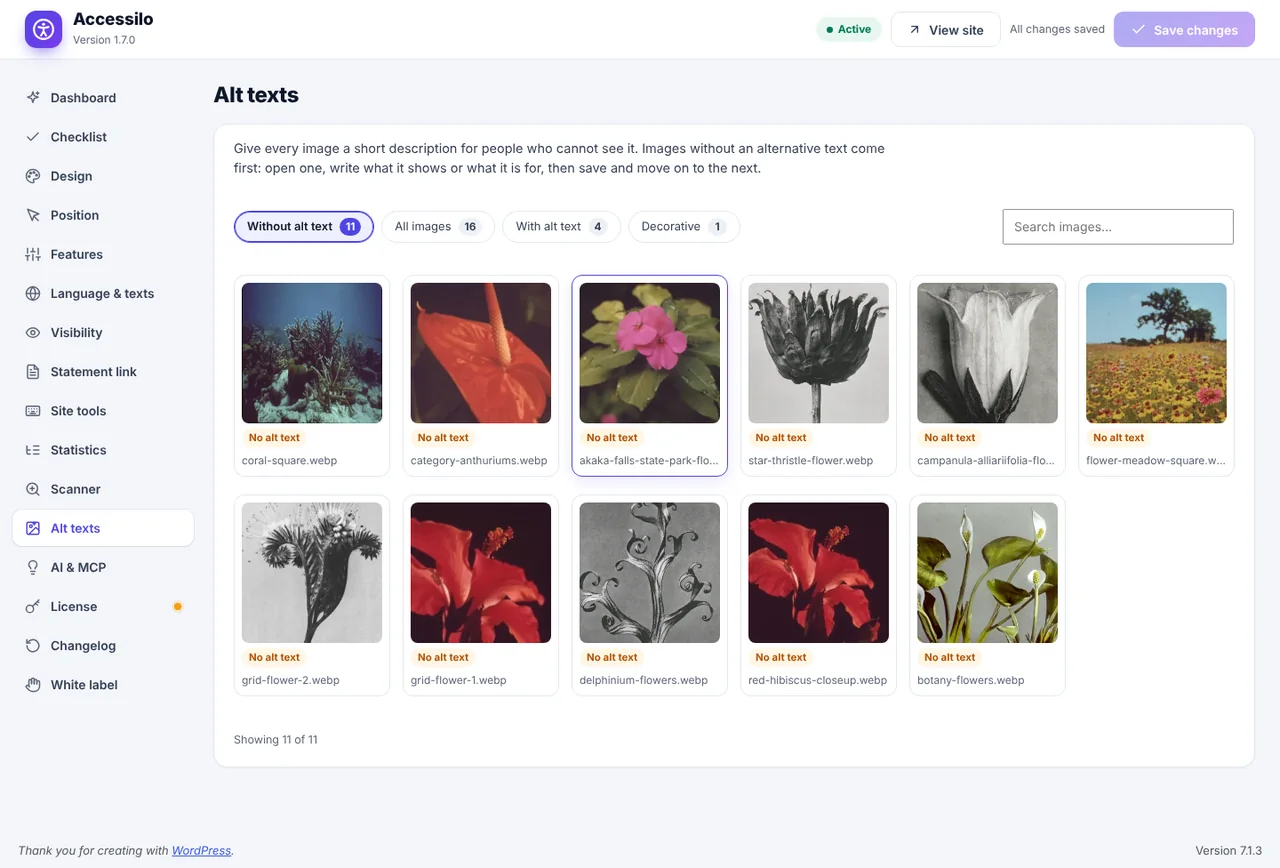
Describe an image
- Click an image to open the editor.
- Write one short sentence that says what the image shows or what it is for.
- Click Save and next, or press Ctrl or ⌘ + Enter. The text is saved and the next image opens. Skip leaves an image as it is and Previous goes back.
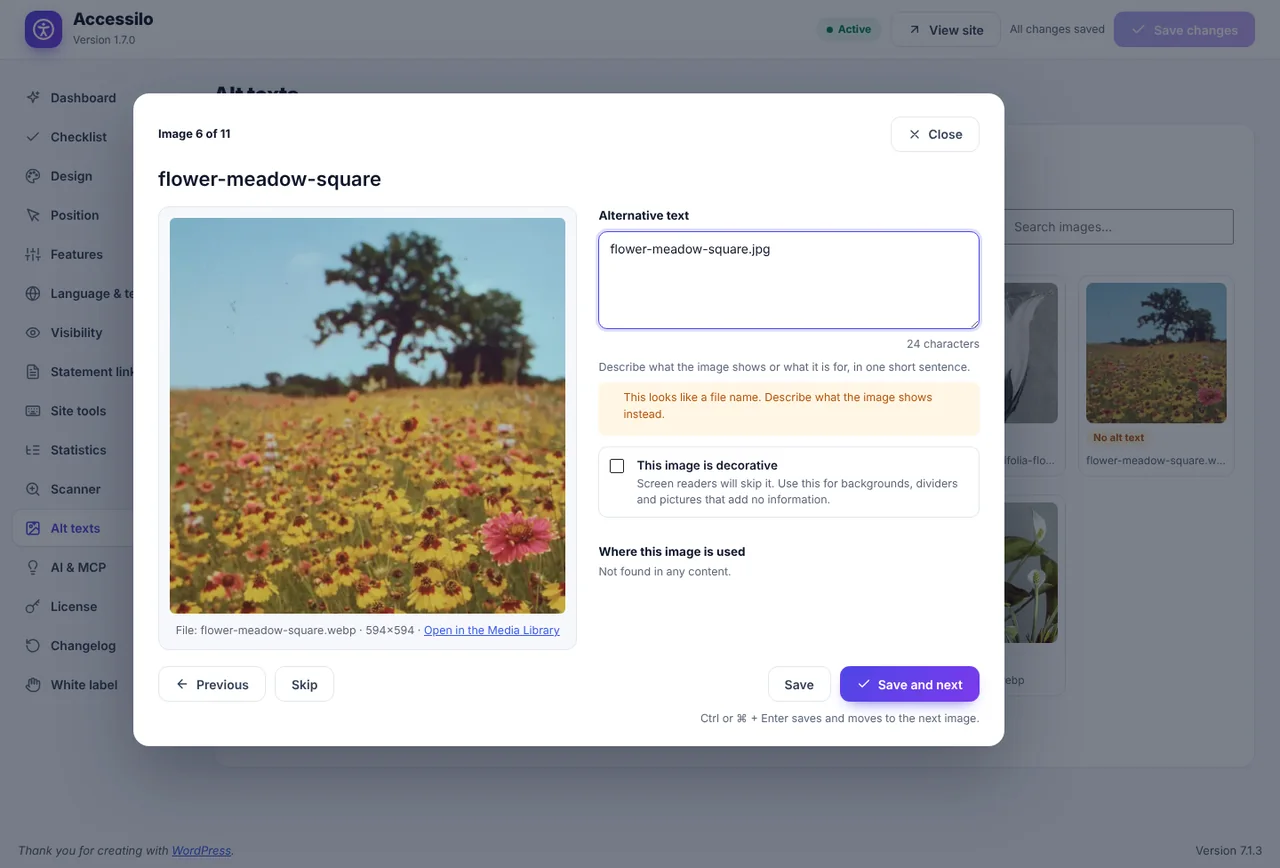
What makes a good description
- Say what matters in the context of the page, not everything that is visible.
- Do not start with “image of” or “photo of”: screen readers already announce that it is an image.
- Keep it short. A tip appears when the text is longer than 125 characters.
- Never use the file name. The editor warns you when the text looks like one.
Decorative images
Some pictures add no information, such as dividers or background patterns. Tick This image is decorative and screen readers will skip it. Accessilo saves it with an empty alt text and remembers your choice, so the image no longer appears under Without alt text.
Where an image is used
The editor shows Where this image is used: the parent page, featured images, content and page builders. Knowing the context helps you write a description that fits.
After saving
The text is saved in the Media Library, so it is available wherever WordPress prints the image. Accessilo asks your page cache to refresh a couple of minutes after you save. The scanner reports the images that still miss a description, and the checklist has a step for alternative texts that links straight to this tab. To use the Media Library text for images that print without one, switch on the automatic fix in Site tools.
Pro tip: work through the list in one sitting. Ten minutes of focused writing usually clears a whole library. Read more about the Alt text editor.
